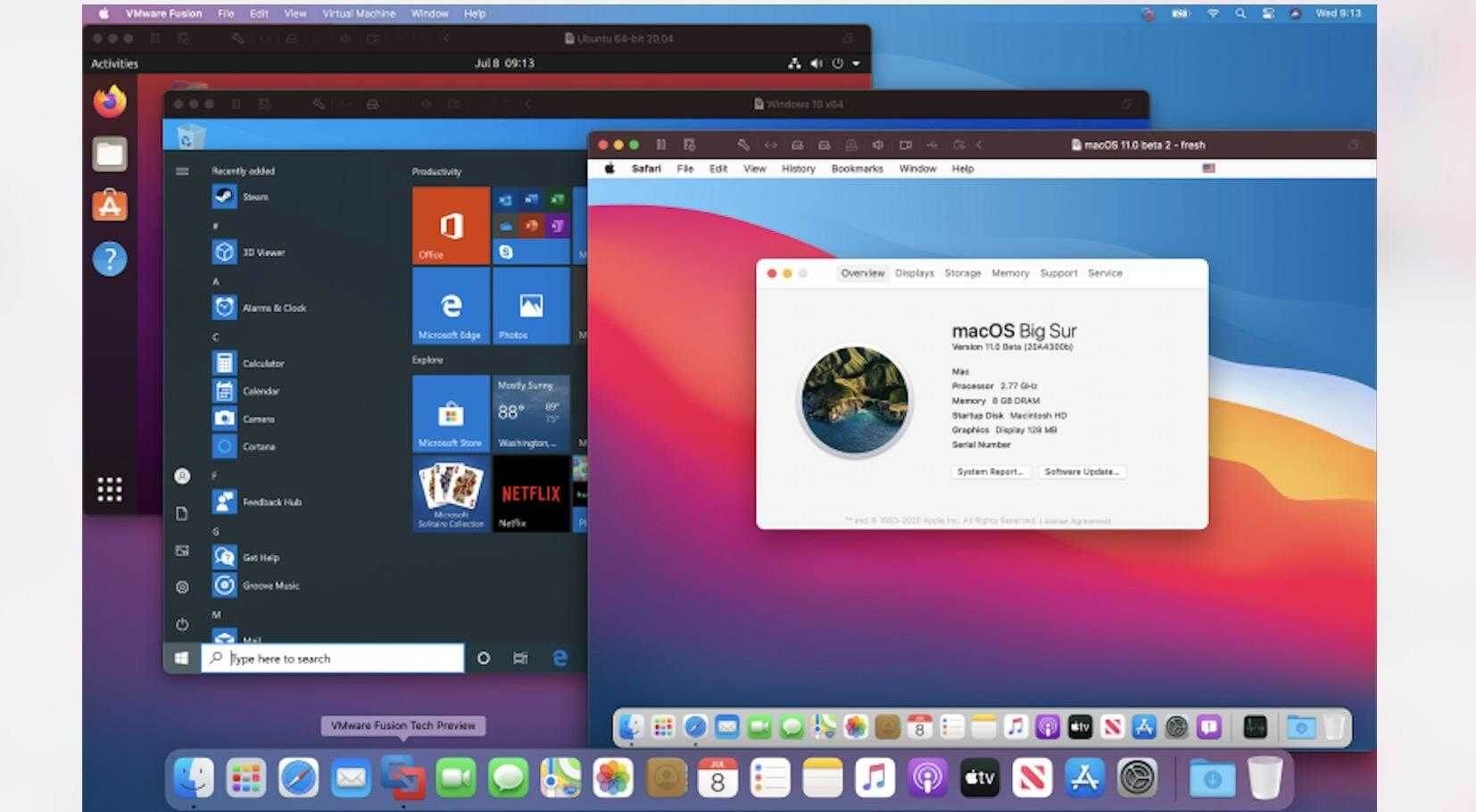

VMware Fusion is a powerful virtualization software designed for macOS users who need to run Windows, Linux, and other operating systems on a Mac without rebooting. It is widely used by developers, IT professionals, and advanced users who want a smooth cross-platform experience. With VMware Fusion, you can easily switch between macOS and other operating systems, run Windows-only applications, test software environments, and improve productivity—all from a single Mac device.
The software is built to deliver high performance and stability while maintaining a native Mac experience. VMware Fusion integrates deeply with macOS features, allowing drag-and-drop file sharing, shared folders, and seamless clipboard integration between systems. It supports both Intel-based and Apple Silicon Macs (with version compatibility), making it a flexible solution for modern Mac users who need virtual machines for work, testing, or learning environments.
Key Features of VMware Fusion
- Run Multiple Operating Systems :
- Easily install and run Windows, Linux, and older macOS versions on your Mac without rebooting.
- Seamless macOS Integration :
- Drag-and-drop files, copy-paste text, and share folders between macOS and virtual machines effortlessly.
- High Performance Virtualization :
- Optimized engine ensures smooth performance for apps, games, and development tools inside virtual machines.
- Snapshot & Restore System :
- Save your VM state anytime and restore it instantly if something goes wrong.
- Unity Mode (Windows Integration)
- Run Windows apps directly on your Mac desktop as if they are native macOS applications.
- Developer-Friendly Environment :
- Ideal for testing applications across different operating systems without needing multiple devices.
- Secure Virtual Machines :
- Isolated environments ensure your main macOS system stays safe from crashes or malware inside VMs.
How to Download VMware Fusion (Mac)
- Go to the official VMware website.
- Navigate to the VMware Fusion product page.
- Click on the Download Free option.
- Sign in or create a VMware account if required.
- Download the macOS installer file (.dmg).
- Open the file and follow the installation instructions.
- Activate using your license key or start the trial version.