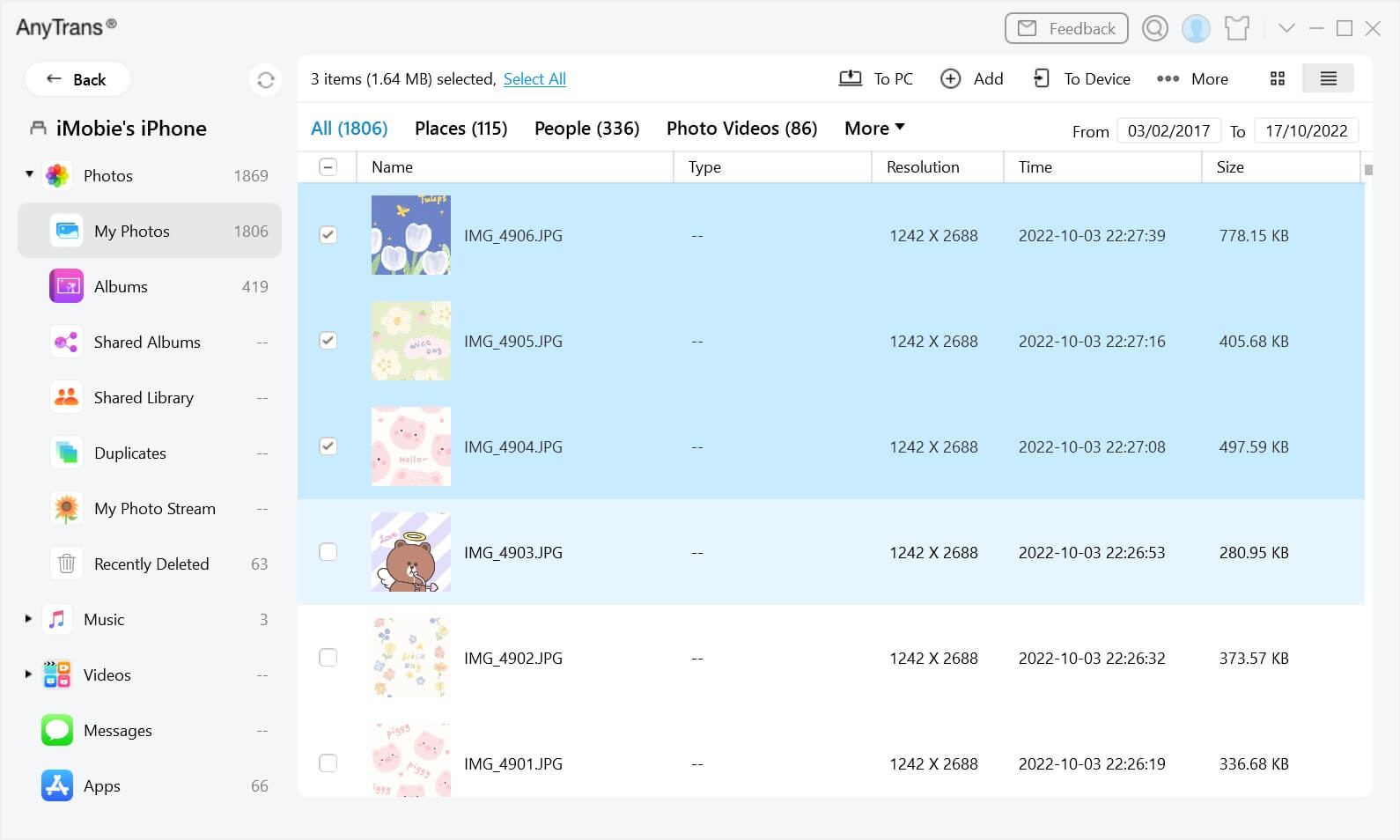


AnyTrans for Mac is a powerful all-in-one iOS data management application designed to help Mac users transfer, back up, organize, and manage files across iPhone, iPad, and Mac devices with ease. Whether you need to move photos, videos, contacts, messages, music, or app data, AnyTrans provides a fast and user-friendly solution without relying solely on iTunes or Finder. Its intuitive interface makes device management simple for both beginners and advanced users.
Built with performance and security in mind, AnyTrans supports the latest versions of macOS and iOS, making it an ideal choice for Apple users who frequently transfer data between devices. The software also includes backup and restore tools, WhatsApp transfer, screen mirroring, and content management features, helping you keep your important data safe and organized while improving your overall productivity.
Key Features
- Complete iPhone & iPad Management:
- Easily manage photos, videos, music, contacts, messages, notes, and documents.
- Fast Data Transfer:
- Transfer files between iPhone, iPad, Mac, PC, and even cloud storage in just a few clicks.
- One-Click Backup & Restore:
- Create secure backups and restore your data whenever needed.
- WhatsApp Transfer:
- Move WhatsApp chats, media, and attachments between iOS devices.
- App Management:
- Install, uninstall, and organize applications directly from your Mac.
- Media Library Control:
- Manage music playlists, videos, podcasts, and audiobooks without iTunes.
- Photo Organizer:
- Export, import, delete, and organize photos quickly.
- Screen Mirroring:
- Display your iPhone or iPad screen on your Mac for presentations or recordings.
- iCloud Content Access:
- Access and manage iCloud Drive, Photos, Contacts, and Notes.
- Simple User Interface:
- Beginner-friendly design with fast navigation and reliable performance.
How to Download AnyTrans for Mac
- Download the latest version of AnyTrans for Mac.
- Open the downloaded DMG file.
- Drag AnyTrans into the Applications folder.
- Launch the application from Applications.
- Allow any required macOS permissions if prompted.
- Connect your iPhone or iPad and start managing your data.