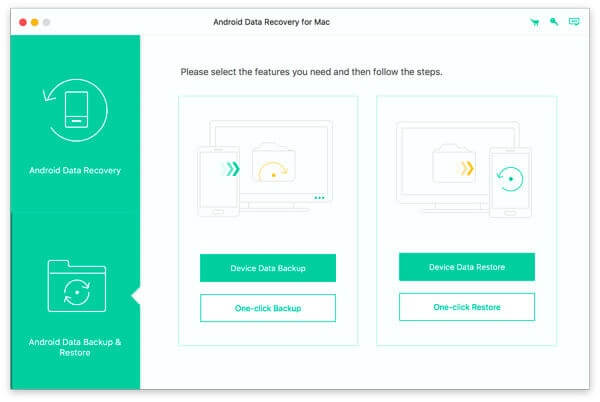


Apeaksoft Android Toolkit for Mac is a powerful all-in-one utility designed to help Mac users manage, recover, transfer, and back up Android data with ease. Whether you accidentally deleted important files, need to transfer data between your Android device and Mac, or want to create secure backups, this toolkit offers a reliable and user-friendly solution. It supports a wide range of Android smartphones and tablets from popular brands, ensuring smooth compatibility across different devices.
The software features an intuitive interface that makes Android management simple for both beginners and advanced users. With fast scanning technology, secure data recovery, and efficient file transfer capabilities, Apeaksoft Android Toolkit helps you keep your important contacts, messages, photos, videos, documents, and other files safe. Its optimized performance on macOS provides stable operation and a seamless user experience without requiring complicated setup procedures.
Key Features
- Android Data Recovery:
- Recover deleted contacts, messages, photos, videos, call logs, WhatsApp data, and documents.
- Android Data Backup & Restore:
- Create complete or selective backups and restore them whenever needed.
- Android File Transfer:
- Transfer files between Android devices and your Mac quickly and securely.
- Wide Device Compatibility:
- Supports most Android smartphones and tablets from leading manufacturers.
- Preview Before Recovery:
- View recoverable files before restoring them.
- Fast Scan Engine:
- Quickly scans internal storage and SD cards for lost data.
- Simple User Interface:
- Easy navigation suitable for beginners and professionals.
- Safe & Secure:
- Performs data recovery and backup without compromising existing files.
- Regular Updates:
- Optimized for newer Android devices and recent macOS versions.
- High Recovery Success Rate:
- Advanced recovery algorithms improve the chances of retrieving deleted files.
How to Download
- Download the latest version of Apeaksoft Android Toolkit for Mac.
- Wait for the installer (.dmg) file to finish downloading.
- Open the downloaded DMG file.
- Drag the application into the Applications folder.
- Launch the software and allow necessary macOS permissions if prompted.
- Connect your Android device via USB and enable USB Debugging to start using all toolkit features.