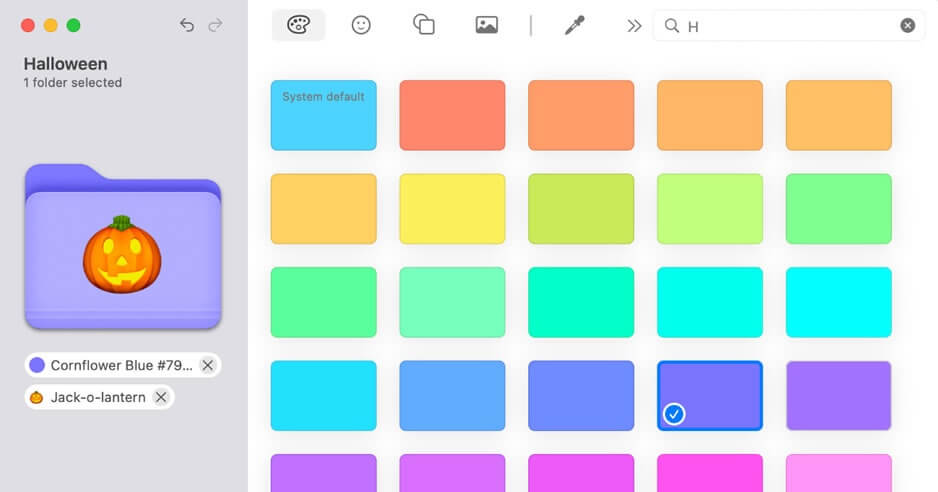

Folder Colorizer for Mac is a simple yet powerful utility that lets you personalize your Mac folders by changing their colors with just a few clicks. Instead of using the default blue folder icon, you can organize your files more efficiently by assigning different colors to work projects, personal documents, photos, videos, or any other category. This makes it much easier to identify important folders at a glance while giving your desktop and Finder a cleaner, more customized appearance.
Designed specifically for macOS, Folder Colorizer offers an intuitive interface that requires no technical knowledge. Whether you're a student, professional, designer, or everyday Mac user, the application helps improve productivity by making folder organization more visual and accessible. It works smoothly with modern versions of macOS and provides a fast way to refresh the look of your Finder without affecting your files or folder contents.
Key Features
- One-Click Folder Color Changes:
- Instantly apply different colors to any folder without complicated settings.
- Custom Folder Organization:
- Assign unique colors to work, school, personal, and media folders for better organization.
- Simple Drag-and-Drop Interface:
- Easily customize folders using an intuitive and beginner-friendly interface.
- Native macOS Experience:
- Designed to match the look and feel of macOS for seamless usability.
- Preserves Folder Contents:
- Changes only the folder appearance while keeping all files completely safe.
- Fast Performance:
- Colorize folders instantly without slowing down Finder.
- Supports Multiple Folder Styles:
- Apply different color variations to create a personalized workspace.
- Improves Productivity:
- Quickly locate important folders through visual identification.
- Lightweight Utility:
- Uses minimal system resources while running efficiently.
- Easy Restoration:
- Restore folders back to their original appearance whenever needed.
How to Download
- Click the Download button available on this page.
- Wait for the download to complete.
- Open the downloaded DMG file.
- Drag Folder Colorizer into the Applications folder.
- Launch the application from Applications or Launchpad.
- If prompted by macOS security, allow the app from System Settings > Privacy & Security.
- Start customizing your folder colors immediately.