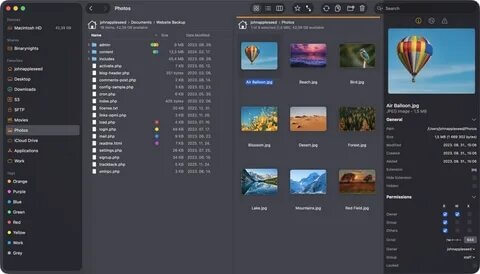


ForkLift is a professional dual-pane file manager designed for macOS users who need a faster and more efficient way to manage files, folders, and remote connections. It combines the simplicity of Finder with advanced file management tools, allowing users to copy, move, synchronize, compare, and organize files with ease. ForkLift supports multiple remote services, making it an excellent choice for developers, designers, and power users who regularly work with servers and cloud storage.
With its clean macOS-style interface and powerful features, ForkLift provides a complete solution for managing local and remote files. It includes support for FTP, SFTP, WebDAV, Amazon S3, Google Drive, Dropbox, and other services. Whether you are transferring large files, managing backups, or organizing your Mac storage, ForkLift delivers a smooth and reliable file management experience.
Key Features of ForkLift for Mac
- Dual-Pane File ManagementManage files more efficiently with a two-panel interface that makes copying, moving, and comparing files faster.
- FTP, SFTP & Cloud SupportConnect easily to remote servers and cloud storage services including FTP, SFTP, WebDAV, Amazon S3, and more.
- File SynchronizationSynchronize folders between different locations to keep your files updated and organized.
- Advanced File OperationsPerform batch renaming, file comparison, folder merging, and secure file transfers with ease.
- Powerful Search ToolsQuickly find files and folders using advanced search options and filters.
- Quick Look IntegrationPreview files instantly using native macOS Quick Look support.
- Archive ManagementCreate and extract popular archive formats without needing additional tools.
- Dark Mode SupportEnjoy a modern interface that matches the latest macOS design.
- Favorites and WorkspacesSave frequently used locations and create customized workflows for faster access.
How to Download ForkLift for Mac
- Download the latest ForkLift version compatible with your macOS system.
- Open the downloaded DMG file.
- Drag the ForkLift application into the Applications folder.
- Launch the app and allow required permissions.
- Configure your local folders, servers, or cloud accounts.
- Start managing and transferring files easily.