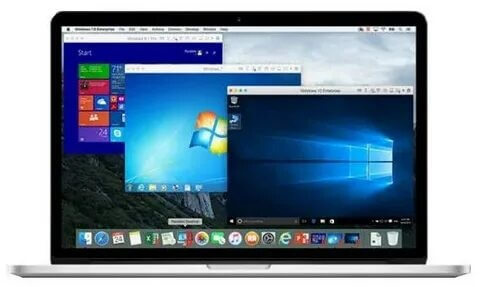

Parallels Desktop is one of the most popular virtualization software for macOS that allows users to run Windows, Linux, and other operating systems directly on their Mac without restarting the computer. With Parallels Desktop, Mac users can easily access Windows-only applications, games, business tools, and development software while enjoying the speed and performance of their Mac hardware. It provides a smooth integration between macOS and virtual machines, making it an ideal choice for professionals, students, and everyday users.
The latest versions of Parallels Desktop for Mac offer improved performance, faster Windows installation, better graphics support, and enhanced compatibility with Apple Silicon Macs (M-series chips). The software includes advanced features such as Coherence Mode, shared folders, drag-and-drop support, and seamless file sharing between macOS and Windows. Whether you need Windows apps for work or want to test different operating systems, Parallels Desktop provides a reliable and user-friendly virtualization experience.
Key Features
- Run Windows on Mac Without Restarting:
- Install and use Windows alongside macOS without the need for dual booting. Switch between operating systems instantly.
- Support for Apple Silicon Macs:
- Optimized for Mac computers powered by Apple M1, M2, M3, and newer chips, delivering better speed and efficiency.
- Coherence Mode:
- Use Windows applications like normal Mac apps by hiding the Windows desktop and integrating apps directly into macOS.
- Fast Installation Assistant:
- Quickly download and install Windows with an easy setup process designed for beginners.
- High Performance Graphics:
- Improved DirectX and graphics support allows smoother performance for creative apps, productivity tools, and some games.
- File Sharing Between macOS and Windows:
- Easily copy files, folders, and text between operating systems using drag-and-drop functionality.
- Snapshots and Backup Support:
- Save the current state of your virtual machine and restore it whenever needed.
- Multiple Operating System Support:
- Run different versions of Windows, Linux distributions, and other supported operating systems on your Mac.
How to Download Parallels Desktop for Mac
- Download the latest version of Parallels Desktop from the official website or trusted software sources.
- Open the downloaded installer file on your Mac.
- Follow the installation instructions and allow required permissions.
- Launch Parallels Desktop and create a new virtual machine.
- Install Windows or another supported operating system.
- Start using Windows applications directly on your Mac.